How To Setup Docker In Hostinger And Deploy Any Docker Image
Intro
In this guide, you guys would learn how to set up any of My tools or any Docker image in Hostinger.
To do that, we definitely need a Hostinger VPS. To grab one, click here . You can grab any if you want to, but I recommend going for at least KVM 2 if you want to host multiple Docker images or tools.
Updating VPS
After buying the VPS, you will be in the hpanel, and we are almost there for the fun part, but before that, we need to update the VPS once. And it's fairly simple.
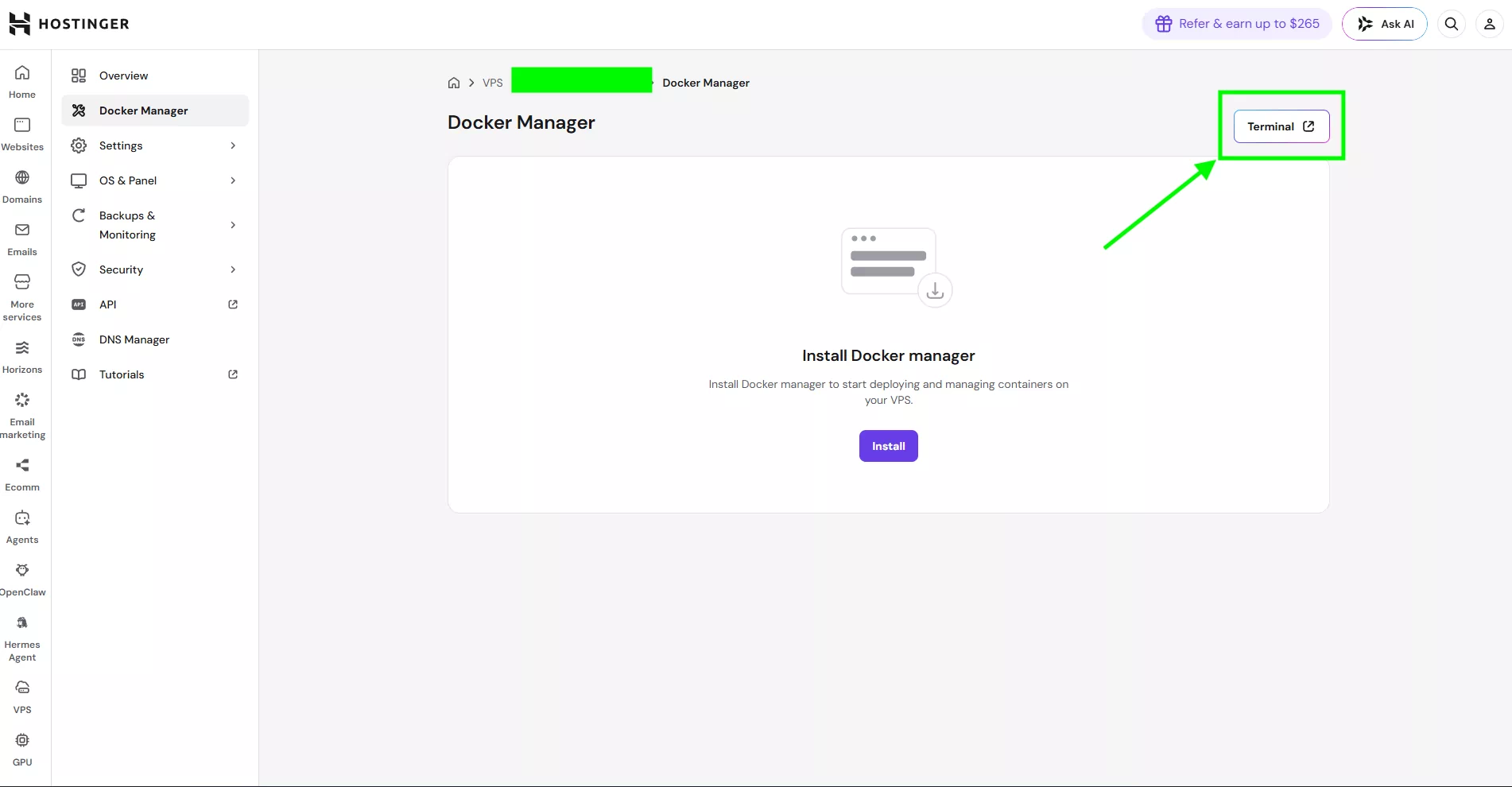
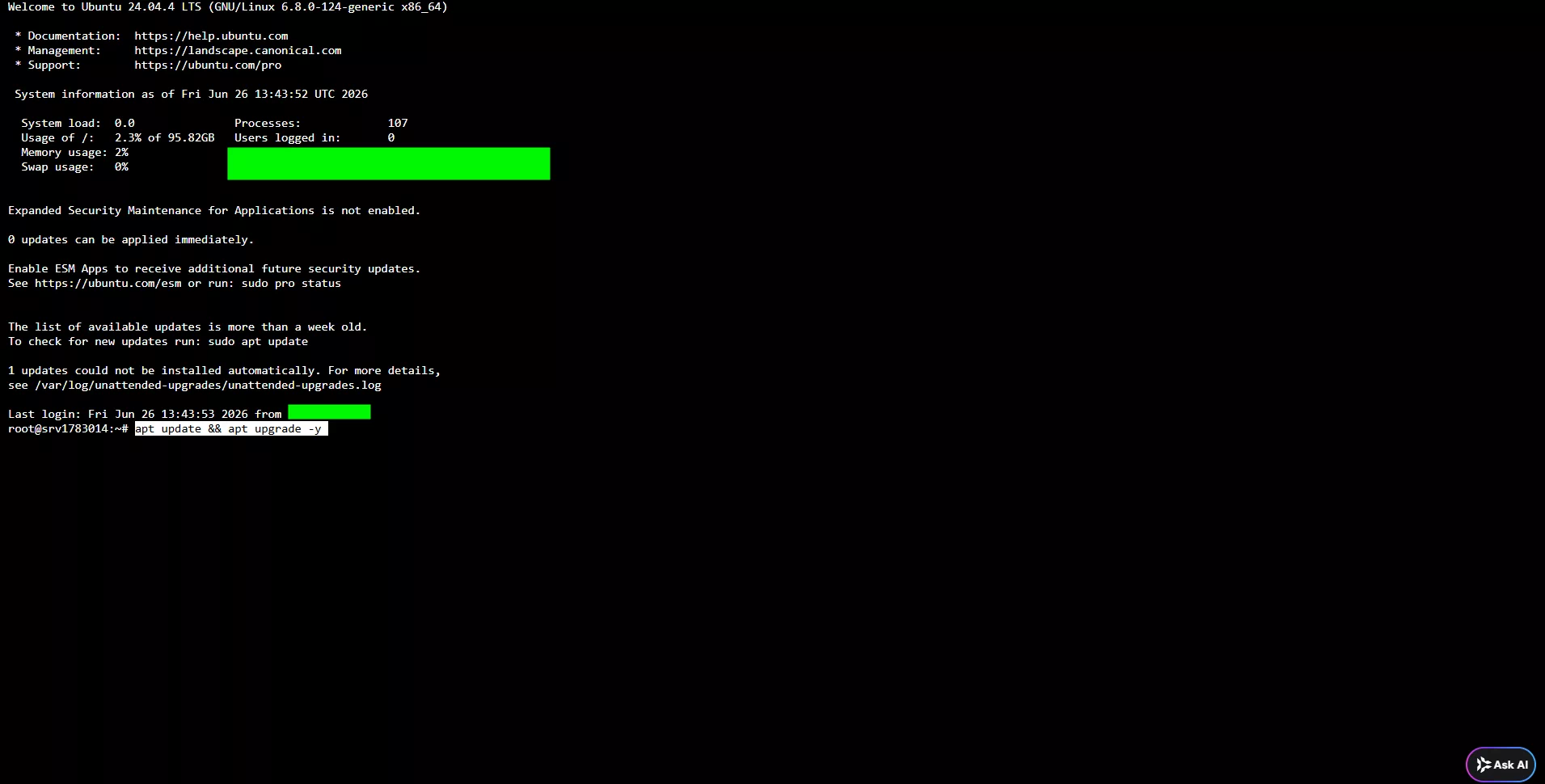
apt update && apt upgrade -yInstalling the Docker manager
We can close the terminal window and go back to the previous screen. And install the Docker manager.
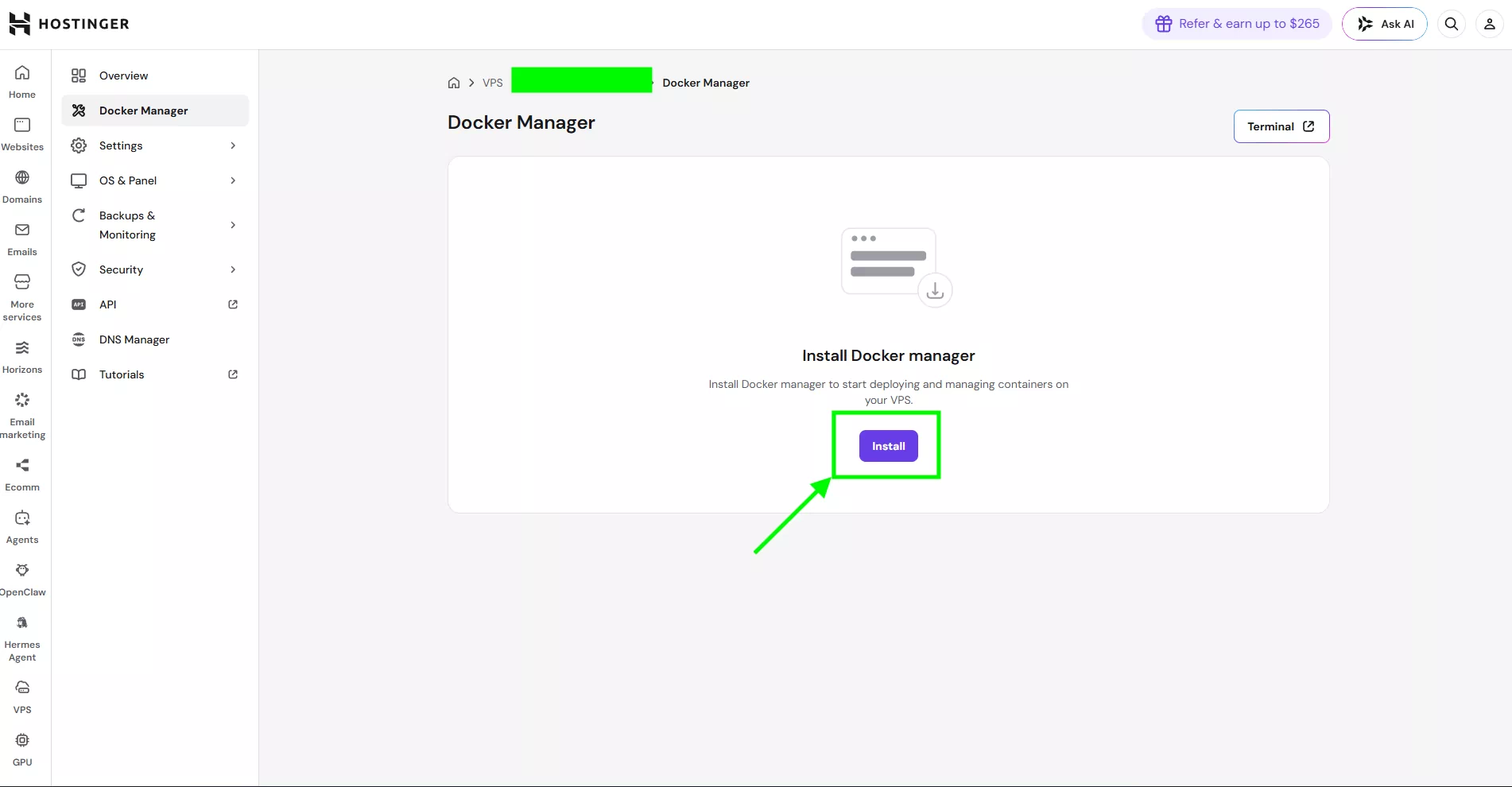
After a few minutes you will get a successful notification. And We Are Ready for the Best Part
Deploying
Now we are ready to deploy. Our Docker Compose. For this demonstration, we will be using MetaLink . Grab The Docker Compose from the Product Page
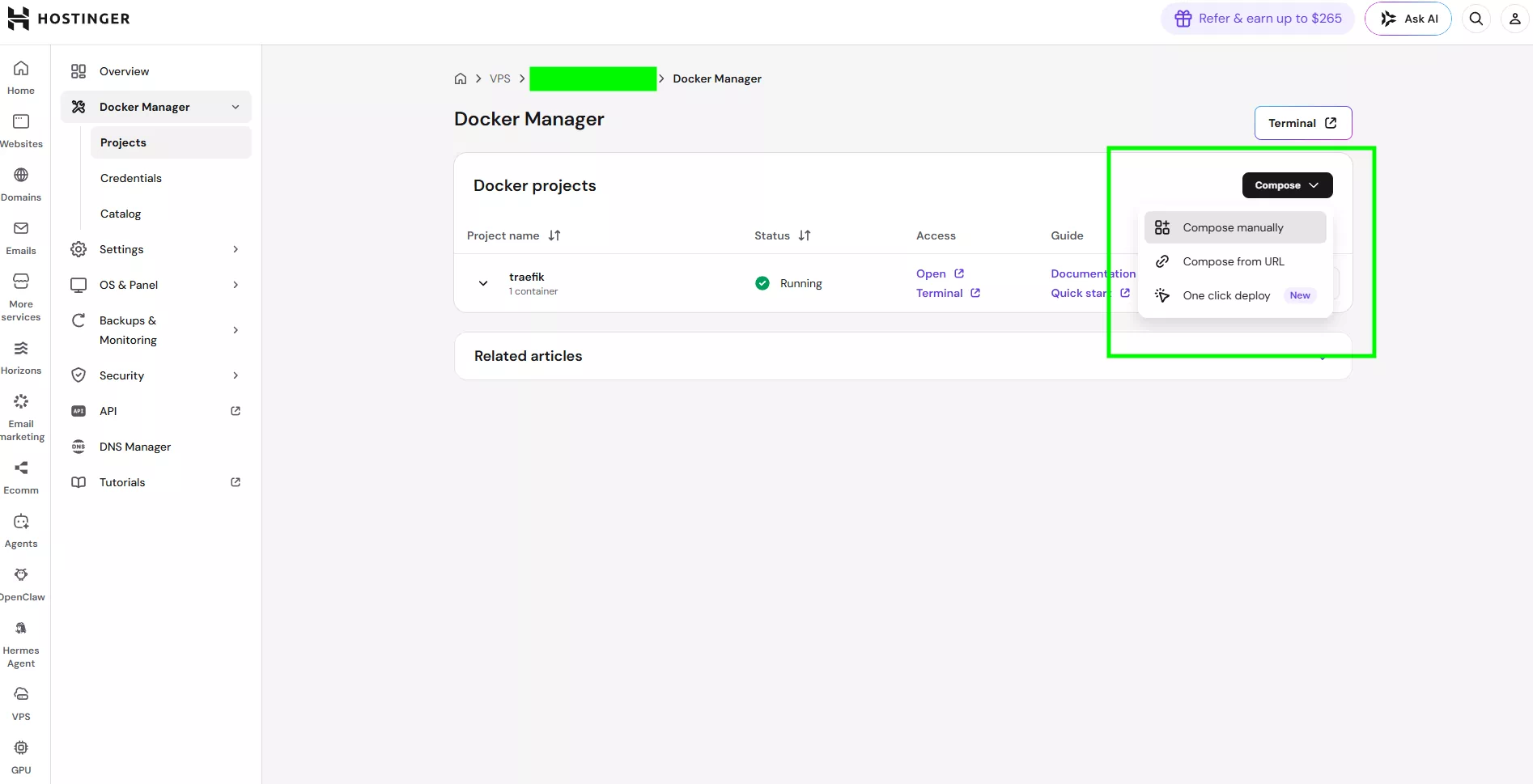
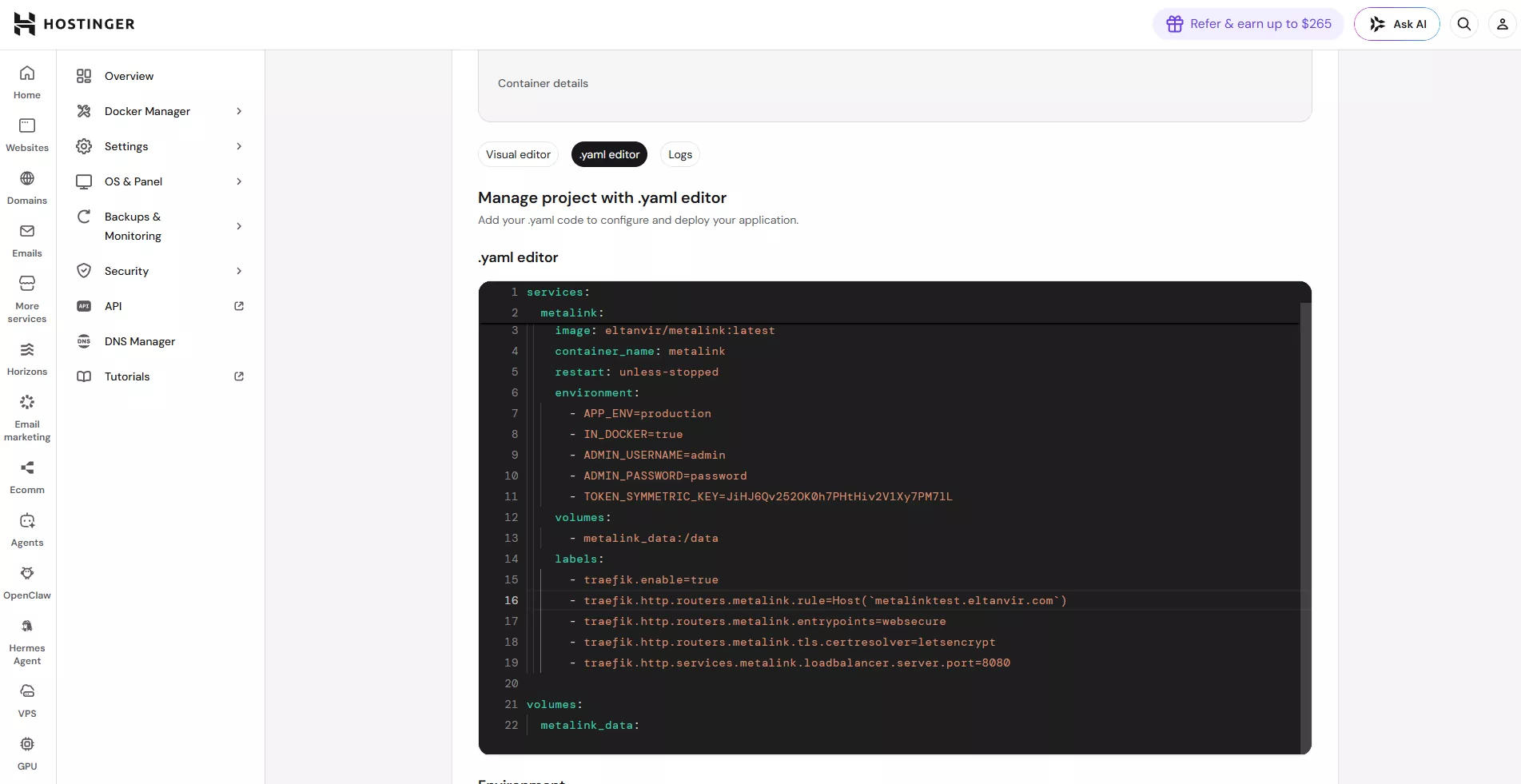
Now set a name for the deployment. You can set anything you like. And click Deploy.
Installing traefik
We need to install Traefik. So that we can connect the domain to our Docker service. Traefik also handles SSL certificates. Making Our Deployment Secure. After you install your first Docker Compose and come back to Docker Manager, you will see an option to install Traefik. Install it, and now we can use Our service With Our Domain